
Simple ways to photograph the night sky on your phone
This article contains an affiliate link. If you buy something through it, we may earn a commission at no extra cost to you. Read our full affiliate disclosure.
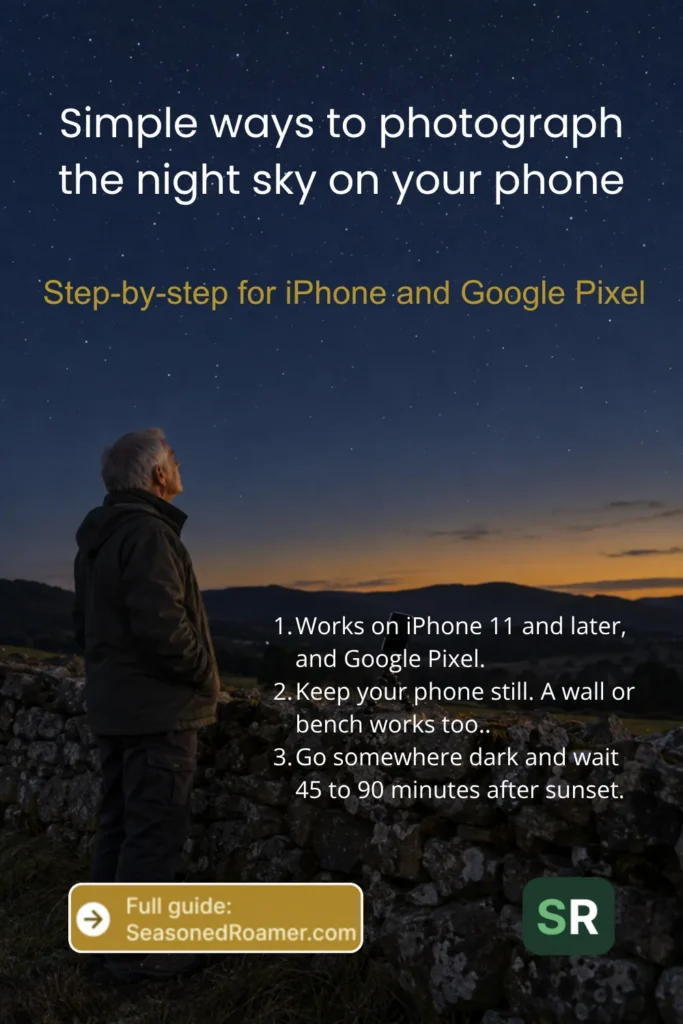
You can photograph the night sky with the phone you already carry. Two things matter most: a dark place and a phone that does not move. This guide covers iPhone and Google Pixel, with a short note for other Android phones.
What you need to photograph the night sky
- An iPhone 11 or later, which has Night mode, or a Google Pixel, which has Night Sight.
- Something steady to rest the phone on, such as a wall, a bench, or a small tripod.
- A clear night, away from bright lights.
If you have a different Android phone, see the section near the end.
When and where should you photograph the night sky?
Stars are hard to see near city lights. Google advises moving away from city lights and waiting at least 45 to 90 minutes after sunset before you photograph the stars.
Before you go out:
- Check the weather forecast. Cloud hides the stars.
- Use a star chart app to see where to look.
- Look at a light pollution map of the area to find where the sky is darkest.
If you are staying somewhere rural, ask your host where the darkest nearby spot is.
Keep your phone still
A night photo can take several seconds to capture. Any movement in that time blurs the picture. Apple and Google both advise resting the phone on a steady surface or using a tripod. Google also advises that you do not hold or touch the phone while it takes the shot.
- Rest the phone on something solid, such as a wall, a bench, or a flat rock.
- Set a 3-second self-timer, so tapping the shutter does not shake the phone.
- In wind, move the phone closer to the ground or shield it from the wind.
A tripod is optional, because a steady surface works too. If you want one that packs small, the Amazon Basics Portable and Flexible Tripod is a 10-inch tripod with bendable legs, a phone clamp, and a wireless remote. The legs can wrap around a pole or branch, and the remote lets you take the photo without touching the phone. If you prefer not to set up the remote, your phone’s 3-second self-timer does the same job. The listing says the clamp fits phones up to 3.7 inches (about 9.4 cm) wide. Before you buy, check that your phone, with its case, fits.
How to photograph the night sky on an iPhone
Let Night mode switch on
Open the Camera app and point it at the sky. In low light, Night mode turns on by itself. The Night mode icon at the top of the screen turns yellow when it is active. A number next to the icon shows how long the shot will take.
Use Max for a longer capture
For more detail, tap the arrow above the viewfinder, then tap the Night mode button. Move the slider above the shutter button to Max. When you take the photo, the slider becomes a timer that counts down to the end of the capture. Keep the phone still until it finishes.
Keep the flash and Live Photos off
Turning on the flash or Live Photos switches Night mode off. Leave both off when you photograph the sky. If your flash is set to Auto, it can turn on by itself in low light, so set it to Off.
How to photograph the night sky on a Google Pixel
Pixel phones have an Astrophotography setting inside Night Sight, made for photos of the night sky.
With a tripod or stand
- Go to a dark area.
- Open the Camera app and tap Night Sight.
- Point the phone at the sky and set it on a tripod or steady surface. Do not hold it.
- When the phone is still, the shutter button changes to Astrophotography mode.
- Tap the shutter. A countdown shows how long is left. Keep the phone still until it finishes.
Without a tripod, using the Astro slider
- In Night Sight, tap the controls icon in the bottom right corner.
- Move the Night Sight slider to Astro.
- Tap the shutter. You then have 5 seconds to set the phone down, facing the sky.
- Wait for the sound that tells you the photo is done.
Set focus to Far and keep zoom at 1x or higher
In Night Sight settings, set Focus to Far. The camera then focuses on anything more than 4 metres (13 feet) away, like the sky. On Pixel 4a (5G) and later, Astrophotography works only at 1x zoom or higher, so do not zoom out below 1x.
Photograph the night sky on other Android phones
Samsung Galaxy phones have a night mode in the camera app, and other Android phones may have one too. Where you find it depends on the make and model. Look for a Night option among your camera’s modes, or check your phone maker’s support pages. The same basics apply: find a dark place and keep the phone still until the photo is done.
More tips for better night photos
- Turn your screen brightness down. A darker screen helps your eyes adjust to the dark.
- Switch your phone to dark theme, called Dark Mode on iPhone, for the same reason.
- Take several photos and check each one. If a photo is blurred, find a steadier spot or use the timer.
- Afterwards, you can adjust the light in your photo app. On iPhone, open the photo in the Photos app, tap the edit button, then tap Adjust. On a Pixel, open it in the Google Photos app and tap Edit.
For everyday phone photo tips, see our guide to taking great photos on your phone.
For more ways to take and keep better travel photos, see our travel photography guides.