
How to video call your family while traveling without the confusion
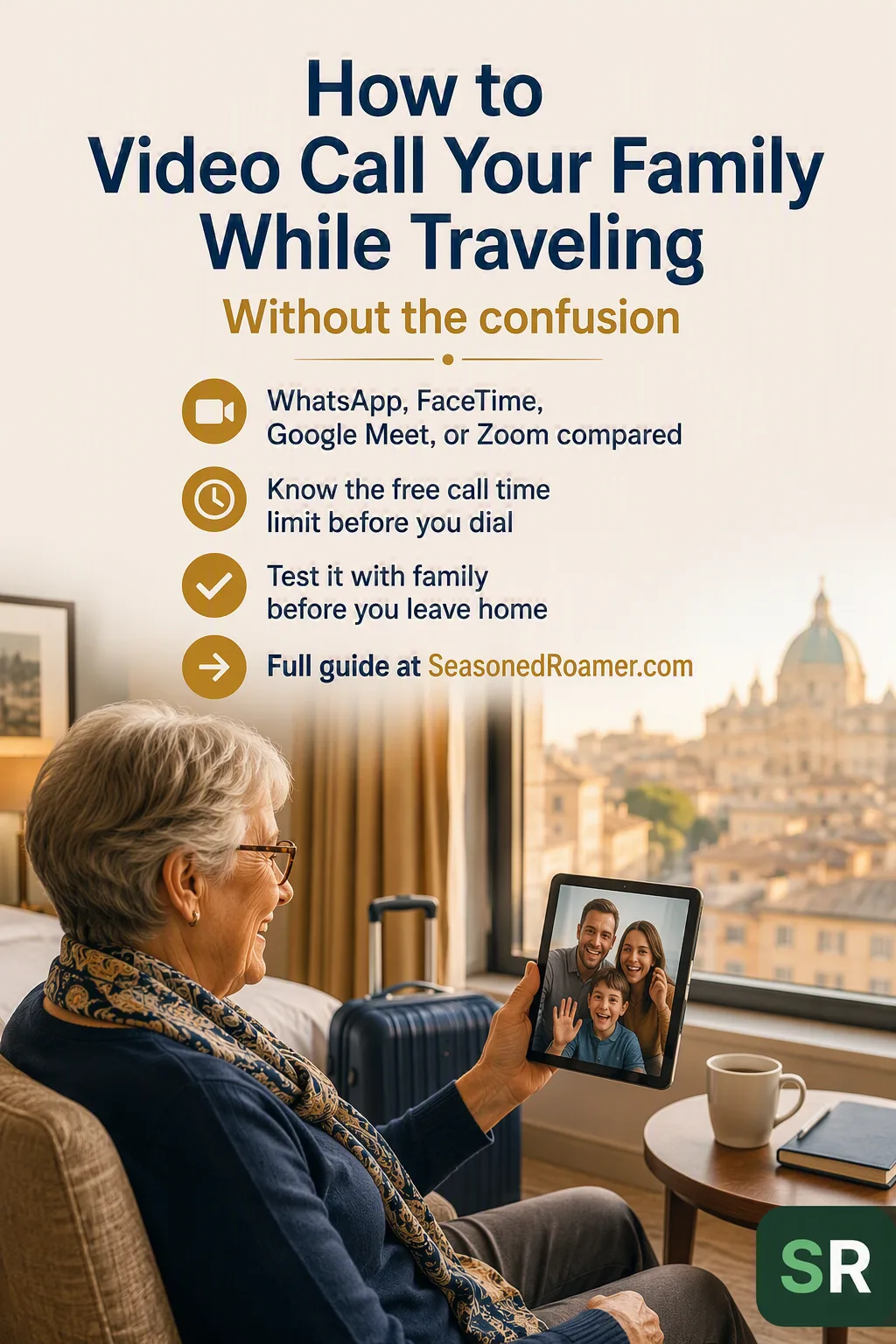
You want to see your grandchildren’s faces while you are away, not just hear their voices. But the first time you try to video call family from a hotel room in another country is the wrong time to find out the app does not work, or that your daughter’s Android phone cannot connect to your iPhone the way you expected.
There are several good ways to make a video call while traveling. Knowing how to video call family while traveling means picking the right one before you leave, not after. Which one works best depends on what phones and computers your family already uses, and how long your calls usually run. This article covers four options in current, active use, so you can pick the one that fits your family before you leave home.
Four ways to video call family
All four of the apps below are free to use. The differences are in which devices they work with, and whether there is a time limit on a free call.
| App | Works between iPhone and Android | What you need | Free call time limit |
|---|---|---|---|
| Yes | The app installed on both phones, with both people registered using a phone number | None published | |
| FaceTime | No, Apple devices only | A FaceTime-enabled iPhone, iPad, or Mac on both ends of the call | None published |
| Google Meet | Yes | A free personal Google account for whoever starts the call. Guests can join without one, but need to be let in | 24 hours for a call between two people. 60 minutes for a call with three or more people |
| Zoom | Yes | A free Zoom account for whoever starts the call. The other person does not need an account | 40 minutes on every call type, including a call between two people |
WhatsApp is the most flexible option if your family has a mix of iPhones and Android phones, since it works the same way on both. Everyone on the call needs the app installed and registered with a phone number.
Setting up WhatsApp for a family video call
- Download WhatsApp from the App Store on an iPhone, or the Google Play Store on an Android phone.
- Open the app and register using your phone number. You will receive a code by text message to confirm it.
- Add your family members as contacts, or confirm they are already in your phone’s contacts.
- Open the chat with the person you want to call, then tap the video camera icon at the top of the screen.
WhatsApp works over Wi-Fi or mobile data. Data charges may apply when you use mobile data, according to WhatsApp’s own help pages.
FaceTime
FaceTime is built into every iPhone, iPad, and Mac, so there is nothing to download if your whole family uses Apple devices. The catch is that someone on an Android phone cannot start or receive a normal FaceTime call. You can send them a FaceTime link, which they open in a web browser to join, but for a regular call with an Android user, another app is usually simpler.
Setting up FaceTime for a family video call
- Make sure you are signed in with your Apple ID. Go to Settings, then tap your name at the top, and sign in if you have not already.
- Go to Settings, then FaceTime, and check that FaceTime is turned on.
- Open the FaceTime app, tap the plus button, and enter the name, number, or email of the person you want to call.
- Tap the video camera icon to start a video call, or the phone icon for an audio-only call.
FaceTime works over Wi-Fi or a cellular data connection. Data rates may apply on cellular. Apple’s own support pages note that FaceTime may not be available in all countries or regions, so it is worth testing with your family before you rely on it for a specific trip.
Google Meet
Google Meet works on any phone, tablet, or computer, through the Meet app, the Gmail app, or a web browser. It is a practical choice if your family already has Google accounts through Gmail, since there is nothing extra to set up.
Only the person starting the call needs a Google account. Family members joining the call do not need one, though the host or another participant already on the call has to let them in.
Setting up Google Meet for a family video call
- Make sure you are signed in to a Google account on your phone or computer. If you use Gmail, you already have one.
- Open the Meet app, or go to meet.google.com in a browser, or open the Gmail app and tap the Meet tab.
- Start a new meeting and share the link with your family, or join a link they send you.
A free personal Google account allows a call between two people to run for up to 24 hours. A call with three or more people is limited to 60 minutes, with a warning chime at the 50-minute mark. This only matters if more than two of you join the same call at once. A one-on-one call with a single family member is not affected.
Zoom
Zoom works on any phone, tablet, or computer. The person joining a call does not need a Zoom account at all, only whoever starts the call needs one.
Setting up Zoom for a family video call
- Download the Zoom app, or use it through a web browser without downloading anything.
- The family member starting the call creates a free account and starts a meeting, then shares the meeting link or ID with everyone joining.
- Everyone else taps the link or enters the meeting ID. They do not need to sign in.
A free account limits every call to 40 minutes, including a call between just two people. This has applied to all call types since 2022, not only larger group calls. If your call reaches the 40-minute mark, it ends automatically for everyone.
This does not rule Zoom out. A 40-minute catch-up is often plenty, and if you want to keep talking, the person who started the call can end it without closing it fully, then start it again on the same link, giving everyone a fresh 40 minutes. It is a genuine, workable option, just one where the time limit is worth knowing in advance rather than discovering mid-conversation.
Setting up before you leave
Install whichever app or apps your family plans to use, and make a test call together while you are both still at home on your own Wi-Fi. This does two things. It confirms the app works between your specific devices, and it means you already know how to use it, instead of learning for the first time from a hotel room in an unfamiliar city.
Agree in advance which app you will use as your main one. If your family is a mix of iPhone and Android, WhatsApp, Google Meet, or Zoom will work for everyone. FaceTime only works if every person on the call has an Apple device.
Using Wi-Fi to avoid data costs
Video calls use noticeably more data than text messages or voice calls on every app covered here. None of these apps publish an exact figure for how much data a call uses, so rather than rely on a number that may not hold up on your specific connection, use your phone’s own data usage screen to see what a call costs you, and connect to Wi-Fi whenever you can rather than using mobile data for a video call.
If you are relying on mobile data for calls while abroad, setting up an eSIM before you travel is worth doing. See how to set up an eSIM before your trip so your phone works abroad for the full steps.
If the call keeps dropping
A poor connection is the most common cause of a call that freezes, drops, or sounds broken up. A few things to check, in order.
- Check your Wi-Fi signal. Moving closer to the router, or to a window if you are using mobile data, often helps.
- Close other apps that might be using data in the background, such as anything downloading or streaming.
- If video keeps freezing but audio is fine, ask the other person to turn their video off and continue as an audio call instead. All four apps support this.
- If the call disconnects entirely, end it and start again. A fresh connection often works where the original one struggled.
Before your next trip
After the call, a quick, well-taken photo of where you are is a nice thing to share. See how to take great photos on your phone at your next destination.
- Decide which app or apps your family will use, based on the phones and computers involved.
- Install the app and sign in before you leave home.
- Make a test call with your family while you are both still on home Wi-Fi.
- Note the free call time limit for your chosen app, particularly if you are using Zoom.
- Set up an eSIM or check your data plan before you travel, so you are not relying on unpredictable Wi-Fi alone.
This is the last lesson in the free mini-course. See how to use Google Maps offline so you are never lost without data if you missed Lesson 1.
For more step-by-step help with your phone and apps, see our Tech for Travelers guides.